How to Reboot a VPS Server
Rebooting a VPS via the Client Area
You can reboot your VPS directly in the Client Area. To do this:
1. Log in to the Client Area.
2. Go to Orders → VPS Hosting.
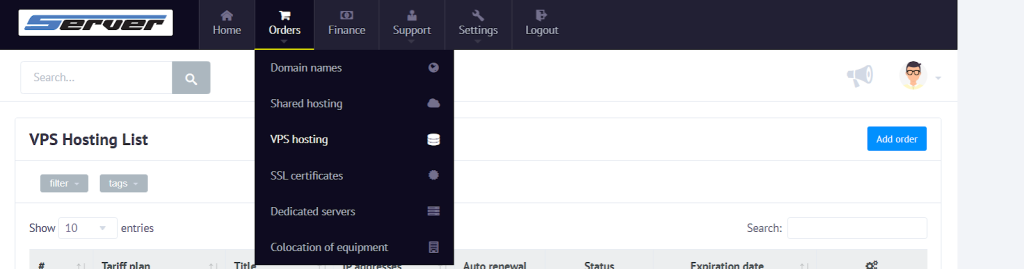
3. Find the required server in the list and open it.
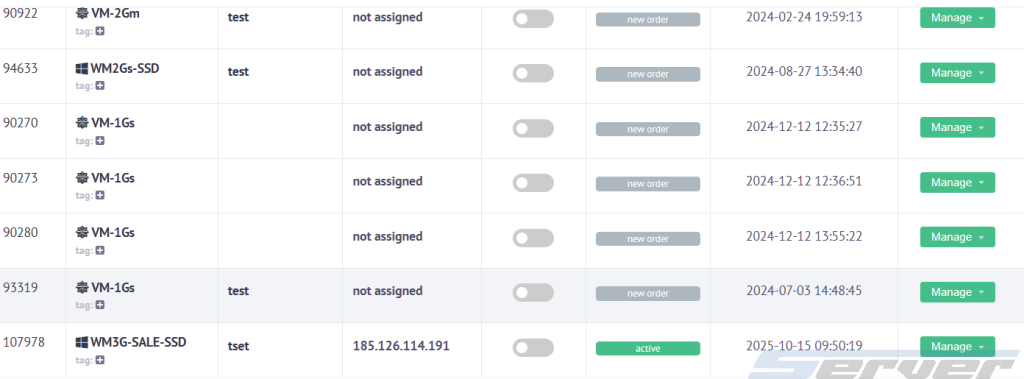
4. Click Reboot to start the process.
When to Perform a VPS Reboot
🔧 After system updates.
If you’ve installed OS or kernel updates, a reboot is required to apply the changes.
⚙️ After software updates.
Some server applications need a restart to work properly with new versions.
🛠 After configuration changes.
If updated service settings haven’t been applied automatically, rebooting helps activate them.
🐞 To fix system issues.
If the server is frozen or performing abnormally, a restart often restores normal operation.
📦 After installing new software.
If an installer requires a restart to complete installation, perform a Reboot.
Important Recommendations
- Perform Reboot only when it’s truly necessary.
- If your server hosts live services, notify users about a short downtime.
- If the server doesn’t respond to a standard reboot, use a hard reboot by selecting Power Off → Power On in the control panel.