How to Reinstall a Server with a New Operating System on VPS
Reinstalling VPS with a Different OS Template
Where to Find the Reinstallation Option
The reinstallation feature is located in the same interface as backup management. The difference is that instead of the Backup tab, you need to use the OS Template section.
How to Perform the Reinstallation
1. Log in to the Client Area.
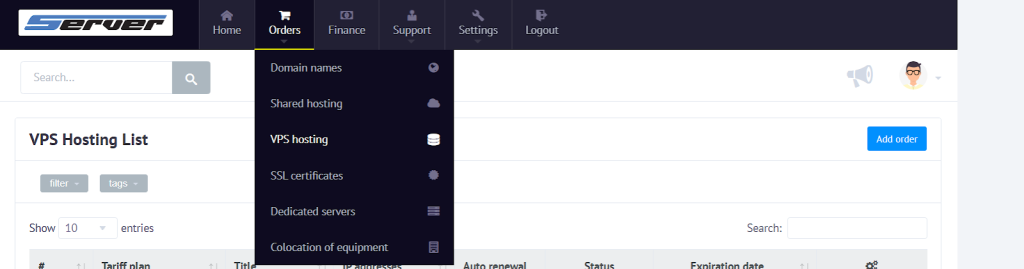
2. Go to Orders → VPS Hosting.
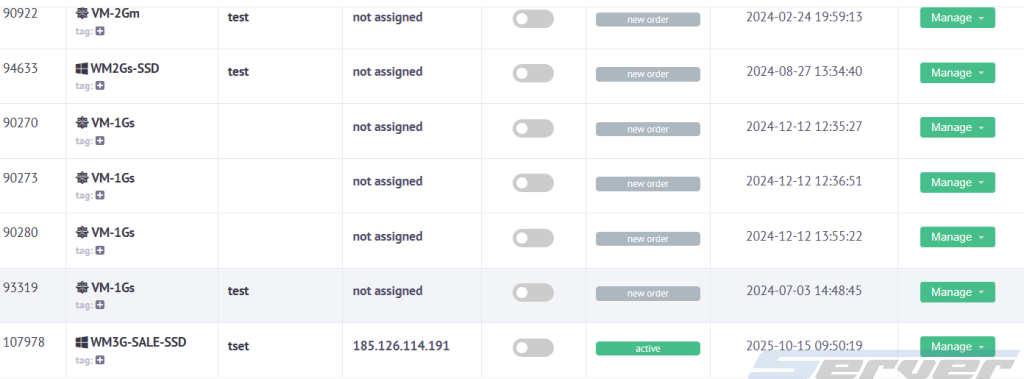
3. From the list of active servers, select the VPS you want.
4. Open the OS Template tab.
5. In the list of available templates, choose the required operating system (for example, Ubuntu, Debian, CentOS, or Windows).
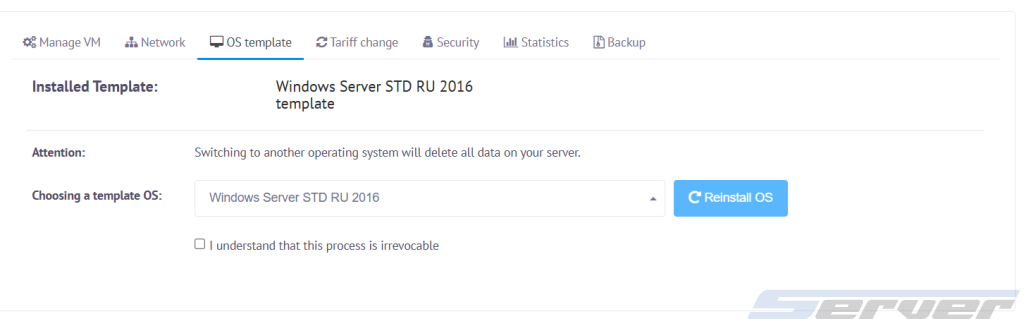
6. Click the Reinstall button.
7. Confirm the action — the reinstallation process will start automatically.
Important Things to Know
- All data will be deleted. After reinstallation, the server is fully wiped, so make sure to create a backup beforehand.
- It’s recommended to make a backup. You can do this manually in the Backup tab.
- The process takes a few minutes. The duration depends on the selected template and your VPS configuration.
- New access details are generated automatically. Once the process is complete, the Client Area will display updated login information: IP address and root/Administrator password.
In just a few clicks, you can reinstall the OS on your VPS. The key point is to back up your important data in advance, since after the procedure the server will receive a completely “clean” environment with the chosen operating system.