How to Verify Domain Ownership via DNS for SSL Certificate Issuance
SSL Domain Verification via DNS
Before issuing an SSL certificate, the Certificate Authority (CA) needs to confirm that you have control over the domain you’re requesting the certificate for. One way to do this is by adding a TXT or CNAME record to your domain’s DNS zone.
With DNS verification, there’s no need to upload a file to your website or set up an email address to receive a confirmation message. All you need is access to your domain’s DNS settings.
Here’s how to find the verification details, add the required record, and check whether everything is working.
Step 1. Find Your Domain Verification Details
After ordering an SSL certificate and selecting DNS verification, you’ll receive the details of the record you need to create.
Depending on the Certificate Authority, this will be either a CNAME or TXT record.
Example CNAME record:
- Name / Host:
_a1b2c3d4e5f67890123456789abcdef0.yourdomain.com - Value / Target:
_f9e8d7c6b5a43210987654321fedcba0.comodoca.com
Example TXT record:
- Name / Host:
@oryourdomain.com - Value / Text:
sectigo-domain-verification=3a2b1c4d5e6f7g8h9i0j
Step 2. Open Your Domain’s DNS Settings
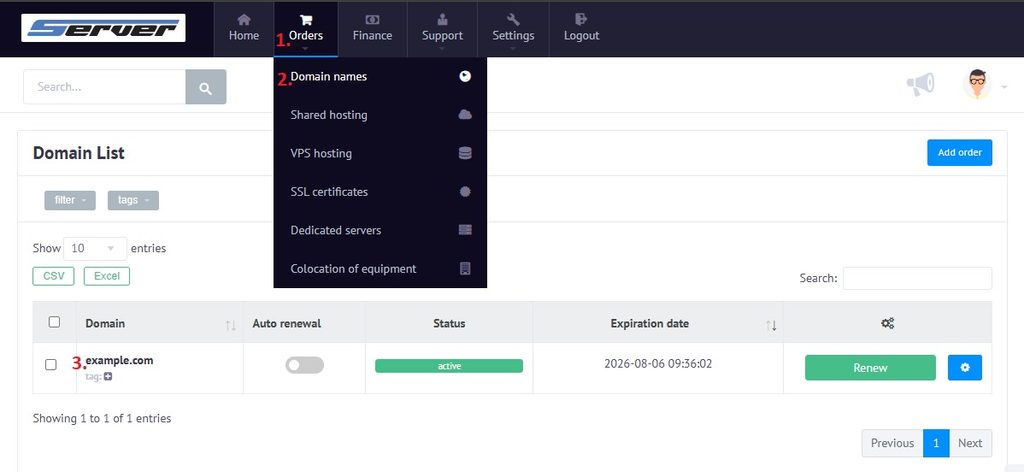
To add the verification record, you’ll need to open the DNS management panel.
- Sign in to your provider’s account dashboard.
- Open the “Orders” section.
- Go to “Domain Names”.
- Find the domain you want to verify and open its settings.
- Navigate to the DNS records management section.
Keep in mind that your DNS may be managed by a different provider from the one where you registered the domain. For example, if your domain uses Cloudflare nameservers, you’ll need to add the record in your Cloudflare dashboard instead.
Step 3. Add a TXT or CNAME Record
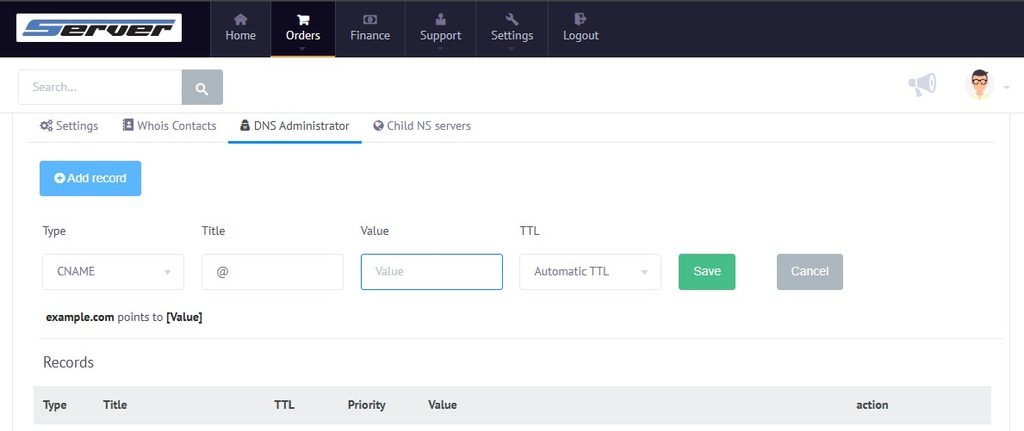
In the DNS zone editor, click “Add Record” or the equivalent option.
Fill in the required fields:
- Record Type — select TXT or CNAME, depending on the verification instructions you received.
- Name / Host — enter the record name. Some DNS panels use the
@symbol to represent the root domain. - Value / Target — paste the verification code or target address provided by the Certificate Authority.
- TTL — leave the default value, such as 3600 seconds, or select Auto.
Once you’ve entered the details, click “Save”.
Before saving, double-check the record name. Some DNS panels automatically append your domain name to the Host field. If you enter the full domain name in one of these panels, it may end up being added twice.
There’s also no need to remove existing DNS records. In most cases, SSL verification only requires adding one new record with the supplied values.
Step 4. Check That Your DNS Record Is Available
A new DNS record may not be visible everywhere immediately after you save it. Depending on DNS settings and caching, the update can take anywhere from a few minutes to 24 hours.
You can check whether the record is available using either of these online tools:
Enter the full name of the record you created, select TXT or CNAME, and run the lookup.
If the tool returns the value you added, the record is already available through the DNS server being queried.
You can then return to your SSL certificate order and start the verification process, if there’s a button or option for doing so. Some Certificate Authorities check DNS records automatically, so you may not need to take any further action.
If verification fails, go back and check the record name, type, and value. Look out for extra characters, spaces, or changes made in the wrong DNS zone.
Once domain verification is complete, the Certificate Authority can proceed with issuing your SSL certificate. OV and EV certificates may also require additional checks to verify your organization.